Google Sheet is one of the most powerful spreadsheet application that exists online, rivaling with Microsoft's Excel. One of the main strengths is its strong support for collaboration with other users, much easier and popular than collaboration tools with Microsoft Office.
Aside from plain spreadsheet, it also supports extensions such as macro. If you are familiar with macros on other office tools, they work almost the same. However, the most extension I use and tinker with is the Apps Scipt.
Apps Script Extension
One of the challenges I faced recently is how do I track or monitor reports in our department if they are submitted on time or worst, forgotten due to lack of better monitoring tools. So I thought if there can be simple applications that can be deployed or use by a more general user to allow reminding periodically what reports are approaching due dates or those that are past dues.
Then I looked for a way, instead of creating a full blown app from scratch, what if I can use tools such as Google Sheets. Then I found out about the Apps Script extension where it lets you code to have some automation capabilities on the spreadsheet. One more thing is that it is based on javascript, one of the most popular languages nowadays for building web applications.
Another thing I looked for is that if I can send emails with Apps Script. It turns out we can using the MailApp.sendMail function! This is great. One last thing though that needs an answer. Can I have automated tasks in Apps Script where I can run specific function periodically. And voila, Apps Script has triggers!
Turns out that a trigger on Apps Script can be of 3 different sources:
- From spreadsheet
- Time-driven
- From calendar
The solution I chose was the Time-driven. This is where we can schedule repetitive tasks such as hourly or daily etc. and what I thought is enough for my requireent. I would just make a daily schedule of checking if there are reports that needs attention at specific time everyday.
Set Up
There are two places where I should work on. First is the spreadsheet where I will put the tasks table for listing tasks or reports and emails where the notifications will be sent, and then on Apps Script extension where I put the functions for parsing the tasks and send emails periodically.
Spreadsheet
For the spreadsheet, I wanted to create a baseline data as minimal as possible. So to think about it, first I need the date for the due date, and then I need to have a data if a specific report or task is already submitted or not, and then lastly is the name of the report. This should be in a reports table with its own worksheet.
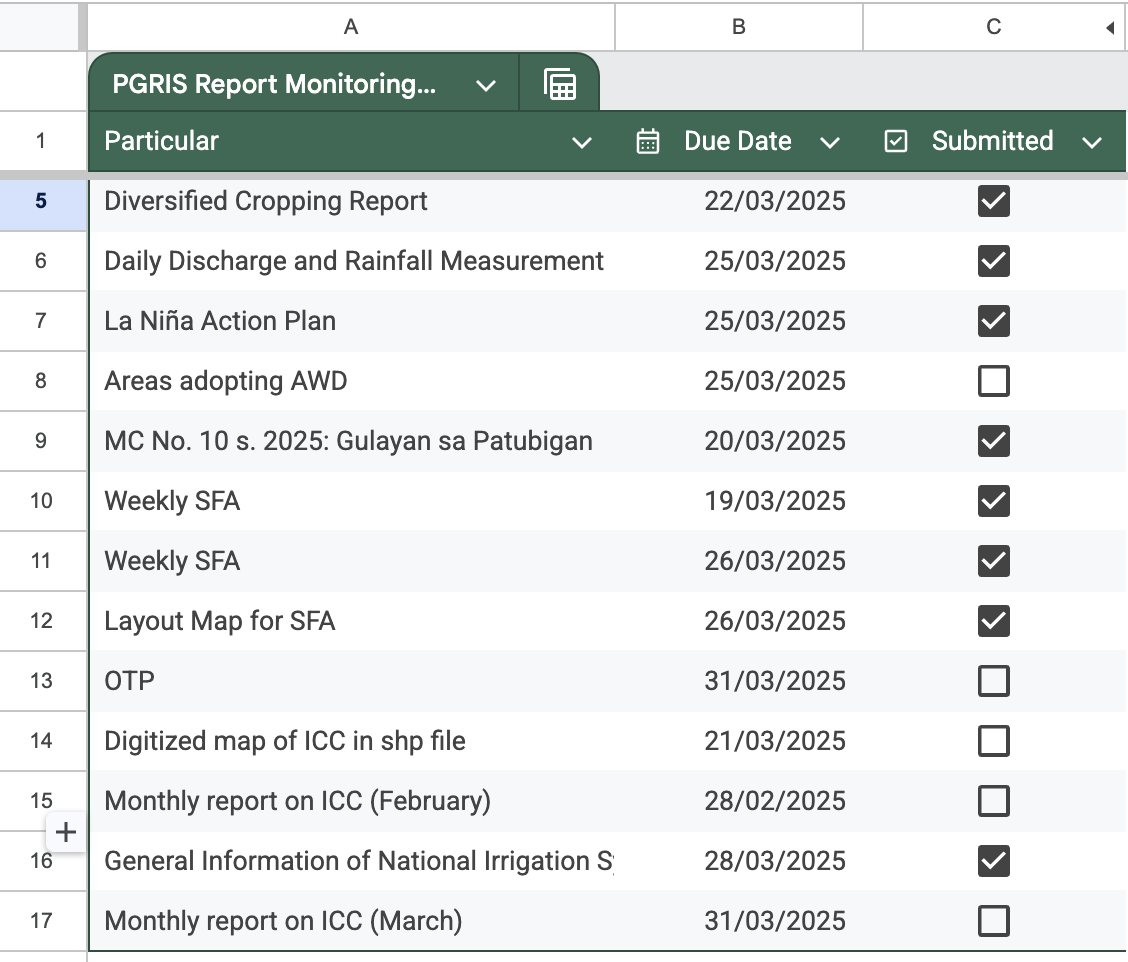
For the list of emails to be notified, I put it in a separate worksheet with its own table.

Apps Script
Now that we have the spreadsheet out of the way, here comes some coding part. Basically, for the most simplified tasks, I need these base functions:
- Get the list of email
- Get all tasks that are not yet checked for submission and get their due dates
- Send a formatted email notification to each of the emails listed on the spreadsheet
After the functions are set, I now proceeded with the trigger. As discussed earlier, the source I selected for the trigger is time-driven as this is what I can think of is appropriate for this project. I then set the trigger to run the function everyday between 8 and 9 am. So far it works for me helping me with the deadlines that I could miss easily!
Conclusion
I think this can be a helpful tool for anybody wanting the same functionality and doesn't require a full blown application. As of now, it is in testing phase for me but is already being helpful.
I hope you get value from this content! Thank for reading and see you on the next one!
Comments
Post a Comment