MathPad: A Math Notebook That Shows Its Working

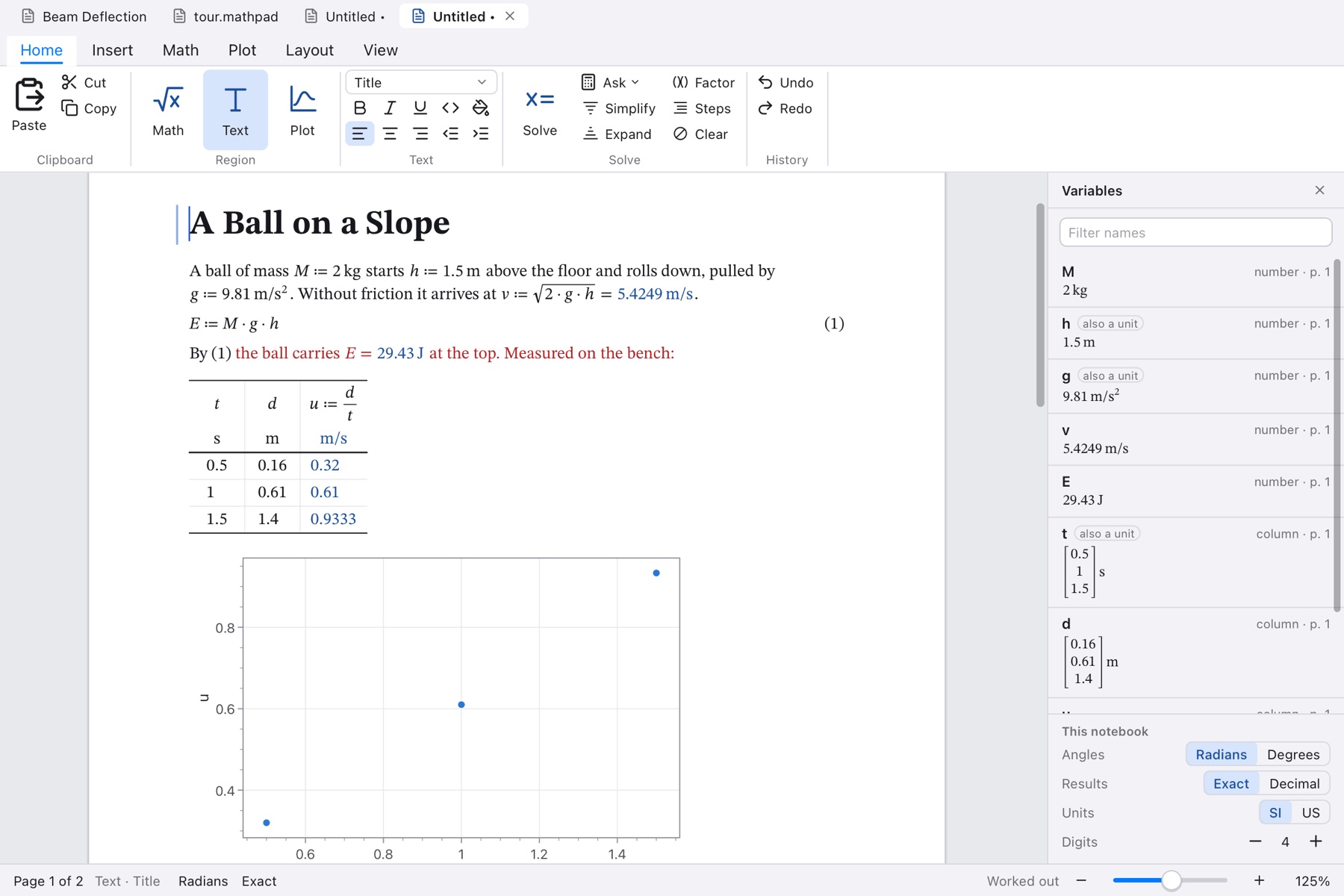
A MathPad notebook with typeset equations worked out down the page

A calculator gives you an answer. A teacher wants to see how you got it, and so does anyone checking an engineering calculation. MathPad is a desktop math notebook where you write a problem the way you would on paper, in real fractions, roots, integrals and matrices, and it works it out down the page, in numbers with their units or in symbols, writing out each step the way it is taught.

Steps, not just answers

Solving, factoring, differentiating and integrating all write out their working: which rule, applied to what, giving what. You can open the steps under any result, as deep as you want them. End a line with = for a number or -> for an answer in symbols, and Cmd+Return lists everything that can be asked of that line.
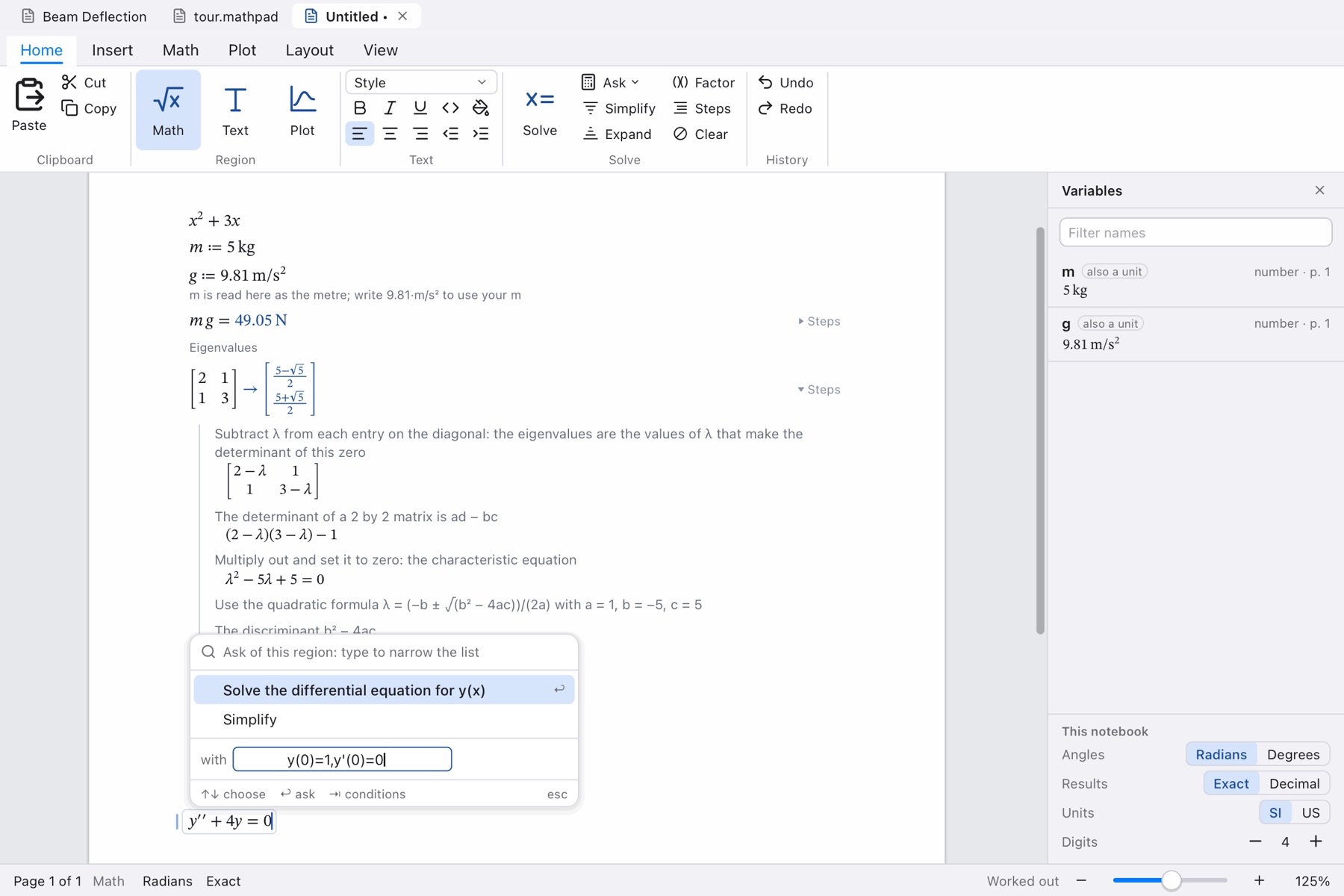
MathPad showing the steps for finding the eigenvalues of a matrix

What it covers

  • Algebra and calculus in symbols: simplify, expand, factor, partial fractions; equations, inequalities and systems; derivatives, integrals, limits, series, sums, and differential equations with their conditions.
  • Numbers with units: SI and US units carried through every formula and checked. Results come in the units they were built from, and convert when you type another unit after the equals sign.
  • Matrices: determinant, inverse, row reduction, eigenvalues and eigenvectors, and Ax = b, each with its steps.
  • Numerical methods and small programs with if, for and while, plus statistics and curve fitting.
  • Plots: graphs, polar and parametric curves, surfaces and contours, with zeros, turning points and crossings marked.
  • Tables, sliders and pictures: columns of data that are vectors, and sliders and choices that set a variable, with everything below following as they move.

No AI, no account

Every answer in MathPad comes from the rules of algebra and calculus, worked out on your own computer. The same question always gives the same answer, and every step can be checked by hand. The only thing MathPad fetches from the internet is its own updates. Pages can be set up for Letter or A4 with headers and page numbers, and exported as PDF, LaTeX, Markdown, a web page or plain text.

MathPad also says where it stops: integration covers the methods of a calculus course, very high-degree equations are solved in symbols only when they factor, and number results use 15-digit decimals. Its guide lists these limits in full.

Get MathPad

MathPad runs on macOS on Apple silicon, with fourteen ready-made example notebooks and a built-in guide. Download it from mathpad.syncster.dev.

Built with Tessel

MathPad is written in Tessel, the small declarative language we made for native desktop apps. The typesetting, the symbolic algebra and the plotting are all Tessel code, with nothing borrowed from a computer algebra system.


🔗 Explore more from Syncster

Comments

Popular posts from this blog

Cursor AI Review: Is the AI Code Editor Worth It?

I've been using Cursor as my main code editor for a while now, and enough people have asked whether it's worth switching to that a proper review felt overdue. Short version: for me, yes — but with caveats. What is Cursor? Cursor is an AI-first code editor built as a fork of VS Code. That means every extension, theme, and keybinding you already use in VS Code works here, but with AI woven directly into the editing experience instead of bolted on as a plugin. It's made by Anysphere and can run models from OpenAI and Anthropic under the hood. What I like Tab completion is uncanny. Cursor predicts your next edit — not just the rest of the line, but the next change across the file. Once you get used to hitting Tab, going back to a plain editor feels slow. The Composer / Agent mode. You describe a change in plain language and it edits multiple files at once, showing you a diff to accept or reject. For refactors and boilerplate, this saves real time. It unde...

MacBook Pro M5 vs M5 Pro: Which One Should You Actually Buy?

Apple's latest 14-inch MacBook Pro comes in two very different flavors: the base M5 and the step-up M5 Pro . On paper they look similar — same gorgeous Liquid Retina XDR display, same design — but under the hood the gap is bigger than the names suggest. Here's a clear, no-hype breakdown, with concrete use cases so you can match the chip to your work. Quick spec comparison Spec M5 M5 Pro CPU 10-core (4 performance + 6 efficiency) Up to 18-core (6 performance + 12 efficiency) GPU 10-core Up to 20-core Neural Engine 16-core 16-core Memory bandwidth 153 GB/s 307 GB/s (roughly double) Unified memory 16 / 24 / 32 GB 24 / 48 / 64 GB Max storage Up to 4 TB SSD Up to 8 TB SSD Battery (video playback) Up to 24 hours Up to 22 hours Media engines Single encode/ProRes engine More encode/ProRes engines (higher configs) What actually changes between them More cores — the M5 Pro nearly doubles CPU cores and adds GPU cores, so sustained, multi-threaded work finishe...

Running a Server on a Mac Mini: Apple Silicon vs the Home-Server Field

The Mac Mini has quietly become one of the most interesting home-server boxes you can buy. It’s tiny, nearly silent, sips power, and Apple Silicon punches far above its weight. But is it actually the right machine to run your services on — or are you paying an Apple tax for a job a $400 mini PC does better? Let’s put it head-to-head. Why a Mac Mini makes a surprisingly good server Three things make Apple Silicon compelling as an always-on machine: Performance per watt. This is the headline. An M4 Mini idles at just a few watts and rarely pushes past ~35W under load, while delivering multicore performance that embarrasses machines drawing twice the power. Silence. Under typical server loads the fan is inaudible. If your “server” lives in a living room or bedroom, this matters more than any benchmark. Footprint. It’s the size of a coaster and runs cool, so it tucks anywhere. The honest catch It’s not all upside: macOS isn’t...