Quill: A Word Processor That Shows the Page You'll Print

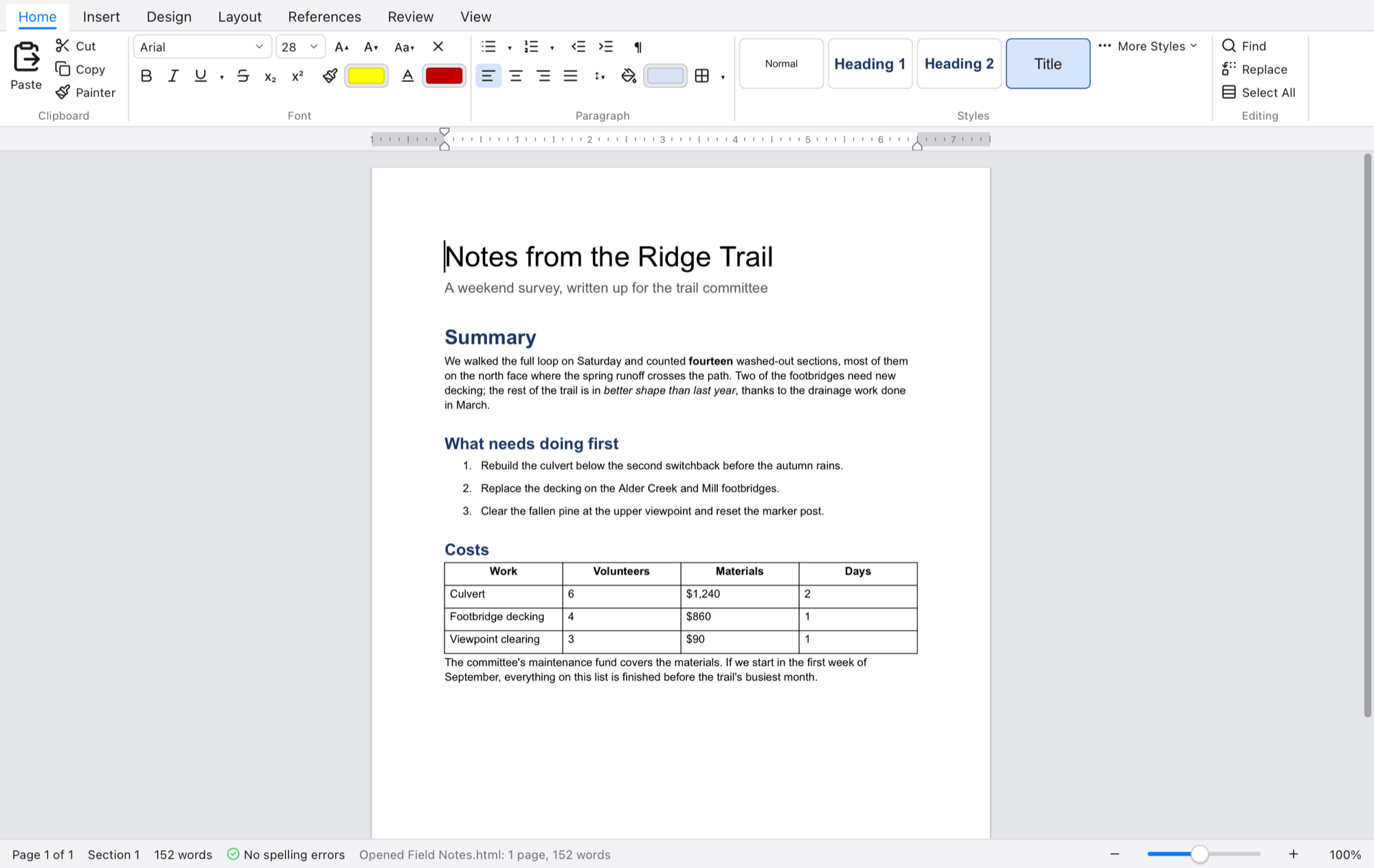
Quill showing a report with a title, headings, a numbered list and a table

Some documents are meant to be printed, signed and filed: reports, letters, specifications, minutes. For those, what matters is the page. Quill is a word processor for the Mac that shows your document as pages, with the margins, headers and footnotes exactly where they'll be on paper, and it opens the Word files people send you and saves them back.

Everything a document needs

  • Pages as they print: paper sizes, margins and orientation, columns, sections with their own setup, headers and footers for first, odd and even pages, and page numbers.
  • Styles: Normal, Title, Heading 1 to 6, Quote and the rest, under the names Word uses. Change a style and every paragraph in it follows; a theme restyles the lot.
  • Tables: merged cells, tables inside tables, borders and shading, header rows that repeat on every page, sorting, and formulas like =SUM(ABOVE). A plus sign at a table's edge adds a row or column, and a handle lets you drag the whole table.
  • Notes and contents: footnotes and endnotes that number themselves, a table of contents made from your headings, bookmarks, cross-references, captions and links.
  • The small things: spelling as you type, smart quotes and dashes, autocorrect, a format painter, rulers, find and replace with wildcards, a large collection of symbols, and three hundred steps of undo.

Made for working with others

Track Changes underlines what's added and strikes through what's deleted, with each author in their own colour. You can accept or reject changes one at a time or all at once, and view the page with all markup, simple markup or as the original. Comments sit in balloons beside the page, with replies and resolving. Both travel with the document into Word and back.

Your files, as they are

Quill opens and saves Word (.docx), OpenDocument (.odt) and Rich Text (.rtf), keeping sections, styles, tables, notes, comments and tracked changes. It also reads and writes Markdown, HTML and plain text. Print preview shows exactly what goes to the printer, and Export as PDF keeps each page at its own size.

Nothing gets lost: unsaved changes are set aside every half minute and offered back if Quill didn't close properly, each open document gets its own tab, and a newer Quill downloads quietly in the background and is there the next time you open it.

Get Quill

Quill is free, for macOS 11 or later on Apple silicon. The installer asks you to agree to the terms; a disk image is also available. Download it from quill.syncster.dev.

Built with Tessel

Quill is written in Tessel, the small declarative language we made for native desktop apps. Its page layout, its Word and OpenDocument support and its interface are all Tessel, and the whole app downloads in about 5 MB.


🔗 Explore more from Syncster

Comments

Popular posts from this blog

Cursor AI Review: Is the AI Code Editor Worth It?

I've been using Cursor as my main code editor for a while now, and enough people have asked whether it's worth switching to that a proper review felt overdue. Short version: for me, yes — but with caveats. What is Cursor? Cursor is an AI-first code editor built as a fork of VS Code. That means every extension, theme, and keybinding you already use in VS Code works here, but with AI woven directly into the editing experience instead of bolted on as a plugin. It's made by Anysphere and can run models from OpenAI and Anthropic under the hood. What I like Tab completion is uncanny. Cursor predicts your next edit — not just the rest of the line, but the next change across the file. Once you get used to hitting Tab, going back to a plain editor feels slow. The Composer / Agent mode. You describe a change in plain language and it edits multiple files at once, showing you a diff to accept or reject. For refactors and boilerplate, this saves real time. It unde...

MacBook Pro M5 vs M5 Pro: Which One Should You Actually Buy?

Apple's latest 14-inch MacBook Pro comes in two very different flavors: the base M5 and the step-up M5 Pro . On paper they look similar — same gorgeous Liquid Retina XDR display, same design — but under the hood the gap is bigger than the names suggest. Here's a clear, no-hype breakdown, with concrete use cases so you can match the chip to your work. Quick spec comparison Spec M5 M5 Pro CPU 10-core (4 performance + 6 efficiency) Up to 18-core (6 performance + 12 efficiency) GPU 10-core Up to 20-core Neural Engine 16-core 16-core Memory bandwidth 153 GB/s 307 GB/s (roughly double) Unified memory 16 / 24 / 32 GB 24 / 48 / 64 GB Max storage Up to 4 TB SSD Up to 8 TB SSD Battery (video playback) Up to 24 hours Up to 22 hours Media engines Single encode/ProRes engine More encode/ProRes engines (higher configs) What actually changes between them More cores — the M5 Pro nearly doubles CPU cores and adds GPU cores, so sustained, multi-threaded work finishe...

Running a Server on a Mac Mini: Apple Silicon vs the Home-Server Field

The Mac Mini has quietly become one of the most interesting home-server boxes you can buy. It’s tiny, nearly silent, sips power, and Apple Silicon punches far above its weight. But is it actually the right machine to run your services on — or are you paying an Apple tax for a job a $400 mini PC does better? Let’s put it head-to-head. Why a Mac Mini makes a surprisingly good server Three things make Apple Silicon compelling as an always-on machine: Performance per watt. This is the headline. An M4 Mini idles at just a few watts and rarely pushes past ~35W under load, while delivering multicore performance that embarrasses machines drawing twice the power. Silence. Under typical server loads the fan is inaudible. If your “server” lives in a living room or bedroom, this matters more than any benchmark. Footprint. It’s the size of a coaster and runs cool, so it tucks anywhere. The honest catch It’s not all upside: macOS isn’t...