Tally: A Fast Desktop Spreadsheet That Opens Your Excel Files

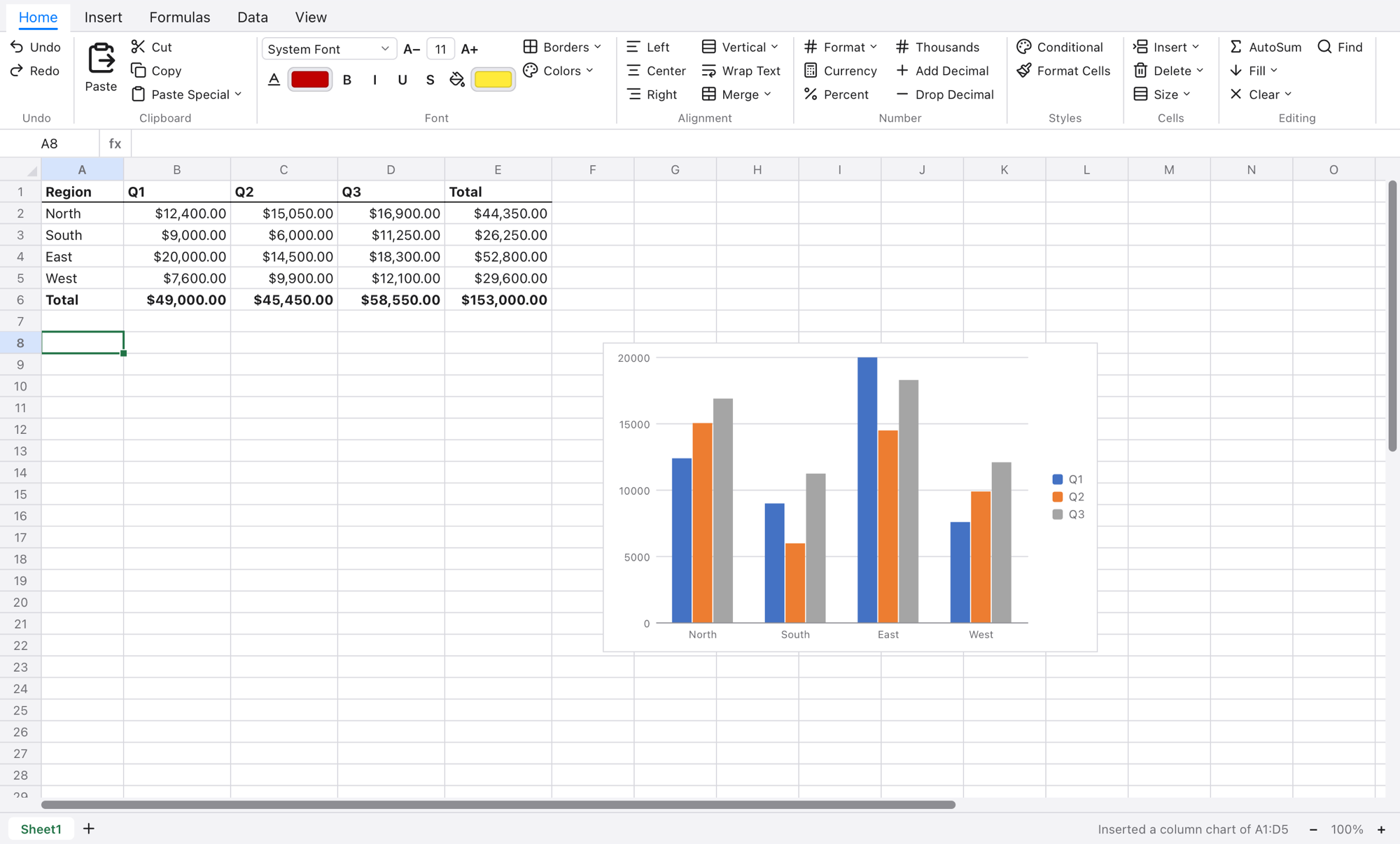
Tally showing a workbook with formulas and a chart

Most of us don't need a spreadsheet to be a platform. We need it to open the workbook someone sent, calculate what it calculated in Excel, and get out of the way. That's the idea behind Tally, a desktop spreadsheet for macOS and Windows that starts in a blink and reads and writes Excel and OpenDocument files as they are.

Formulas you already know

Tally has over 490 functions, from everyday ones like SUMIFS and XLOOKUP to statistical and financial ones like LINEST and PRICE. Dynamic arrays spill into the cells around them, LET and LAMBDA are there, and so are names, tables and references across sheets. If a formula works in a modern copy of Excel, the aim is that it gives the same answer in Tally.

Fast on big sheets

A sheet goes up to a million rows by sixteen thousand columns. When you edit a cell, Tally recalculates only what depends on it, which takes a couple of milliseconds even on a sheet with 200,000 formulas. Scrolling, filtering and sorting stay quick on the kind of data exports that make other apps stutter.

More than a grid

  • Charts: column, bar, line, area, pie, scatter, bubble, radar, stock and combinations, with trendlines, error bars and a second axis.
  • Tables and pivots: banded tables with total rows and structured references like Sales[Amount], and pivot tables by rows, columns and values, with date grouping.
  • Data tools: sort, filter, conditional formatting, validation, subtotals and outlines, text to columns, paste special, goal seek, a solver and scenarios.
  • Print and protect: page setup with a live preview, PDF export, passwords on sheets, and workbooks encrypted the way Excel encrypts them.

Your files, as they are

Tally reads and writes Excel (.xlsx) and OpenDocument (.ods) workbooks with their formulas, styles, charts, notes, tables, validation and page setup, as well as CSV and TSV. A password-protected Excel workbook opens with its password and stays encrypted when you save it. Several workbooks open side by side in tabs, unsaved changes are copied aside every half minute in case of a crash, and everything can be undone.

Get Tally

Tally is free, for macOS 12 or later on Apple silicon and Windows 10 or later. It updates itself from the Help menu. Download it from tally.syncster.dev.

Built with Tessel

Tally is written in Tessel, the small declarative language we made for native desktop apps. The whole app, from the formula engine to the file formats, is Tessel code, and it ships as one small native program on each platform.


🔗 Explore more from Syncster

Comments

Popular posts from this blog

Cursor AI Review: Is the AI Code Editor Worth It?

I've been using Cursor as my main code editor for a while now, and enough people have asked whether it's worth switching to that a proper review felt overdue. Short version: for me, yes — but with caveats. What is Cursor? Cursor is an AI-first code editor built as a fork of VS Code. That means every extension, theme, and keybinding you already use in VS Code works here, but with AI woven directly into the editing experience instead of bolted on as a plugin. It's made by Anysphere and can run models from OpenAI and Anthropic under the hood. What I like Tab completion is uncanny. Cursor predicts your next edit — not just the rest of the line, but the next change across the file. Once you get used to hitting Tab, going back to a plain editor feels slow. The Composer / Agent mode. You describe a change in plain language and it edits multiple files at once, showing you a diff to accept or reject. For refactors and boilerplate, this saves real time. It unde...

MacBook Pro M5 vs M5 Pro: Which One Should You Actually Buy?

Apple's latest 14-inch MacBook Pro comes in two very different flavors: the base M5 and the step-up M5 Pro . On paper they look similar — same gorgeous Liquid Retina XDR display, same design — but under the hood the gap is bigger than the names suggest. Here's a clear, no-hype breakdown, with concrete use cases so you can match the chip to your work. Quick spec comparison Spec M5 M5 Pro CPU 10-core (4 performance + 6 efficiency) Up to 18-core (6 performance + 12 efficiency) GPU 10-core Up to 20-core Neural Engine 16-core 16-core Memory bandwidth 153 GB/s 307 GB/s (roughly double) Unified memory 16 / 24 / 32 GB 24 / 48 / 64 GB Max storage Up to 4 TB SSD Up to 8 TB SSD Battery (video playback) Up to 24 hours Up to 22 hours Media engines Single encode/ProRes engine More encode/ProRes engines (higher configs) What actually changes between them More cores — the M5 Pro nearly doubles CPU cores and adds GPU cores, so sustained, multi-threaded work finishe...

Running a Server on a Mac Mini: Apple Silicon vs the Home-Server Field

The Mac Mini has quietly become one of the most interesting home-server boxes you can buy. It’s tiny, nearly silent, sips power, and Apple Silicon punches far above its weight. But is it actually the right machine to run your services on — or are you paying an Apple tax for a job a $400 mini PC does better? Let’s put it head-to-head. Why a Mac Mini makes a surprisingly good server Three things make Apple Silicon compelling as an always-on machine: Performance per watt. This is the headline. An M4 Mini idles at just a few watts and rarely pushes past ~35W under load, while delivering multicore performance that embarrasses machines drawing twice the power. Silence. Under typical server loads the fan is inaudible. If your “server” lives in a living room or bedroom, this matters more than any benchmark. Footprint. It’s the size of a coaster and runs cool, so it tucks anywhere. The honest catch It’s not all upside: macOS isn’t...